
There are several ways to find the IP address of a Windows VPS, including using Command Prompt, PowerShell, and the Windows graphical interface. In this guide, we’ll walk you through each method step by step.
When you buy a Windows VPS, your provider will provide you with one or multiple IP addresses to connect to your VPS and use it. The first thing you should check is your provider’s panel to find your VPS IP address
If you don’t find your IP in your provider’s panel, you can use the solutions below to learn how to get VPS IP address in a Windows VPS and how you can manage it.
Find IP Address in Windows Using CMD
The first and easiest way is to check your IP address from the Windows command line (CMD) which with running a simple command, you can verify all your network adapters assigned IP addresses.
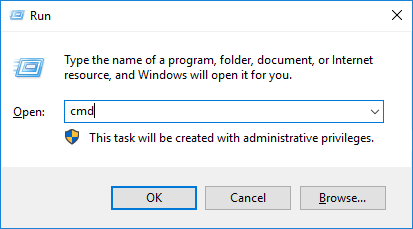
To open CMD, you can search for it in the Start menu or press the Win + R shortcut, type cmd, and press Enter to open Command Prompt.
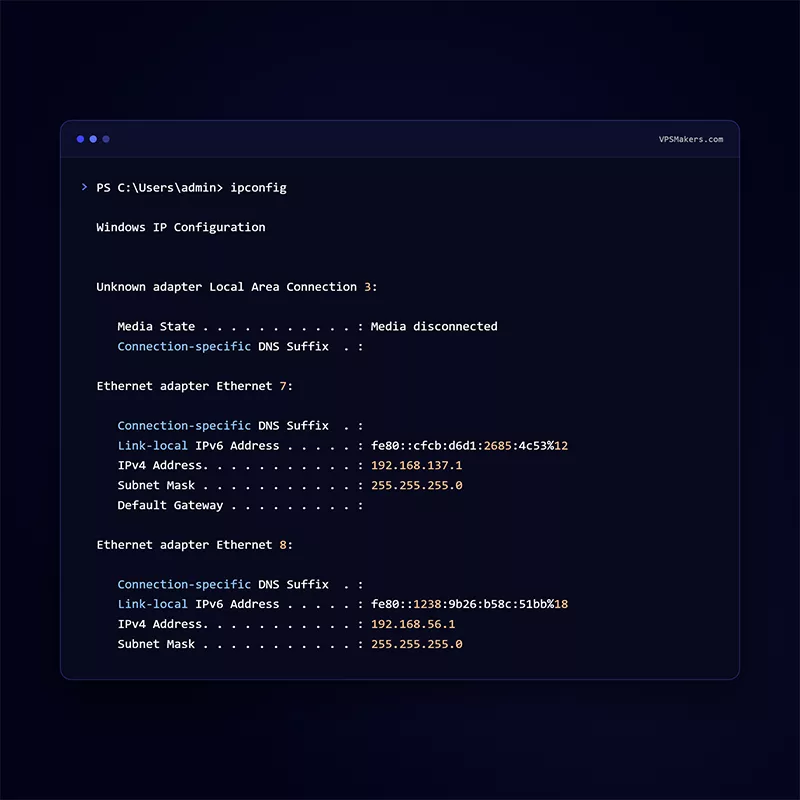
Then, in CMD, run the command below to list your network adapters alongside their assigned IP addresses.
ipconfig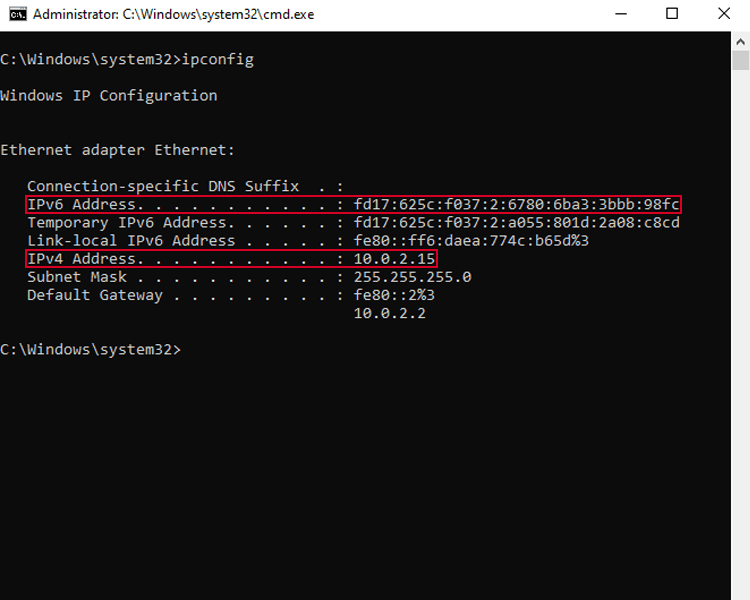
You can see your network adapters; find the main one that is connected to the internet; it is commonly named Ethernet 0. Here you can find your VPS IP addreses either you are using IPv6 or IPv4.
Most VPS providers provide you with IPv4; you can use this IP to connect to your Windows VPS with Remote Desktop and run services on your VPS.
Find IP Address in Windows Using PowerShell
Using Windows PowerShell, you can find your IP address, which provides some commands that show more information about your IP address and the network adapter that this IP is bound to.
Get IP Address in Windows With PowerShell
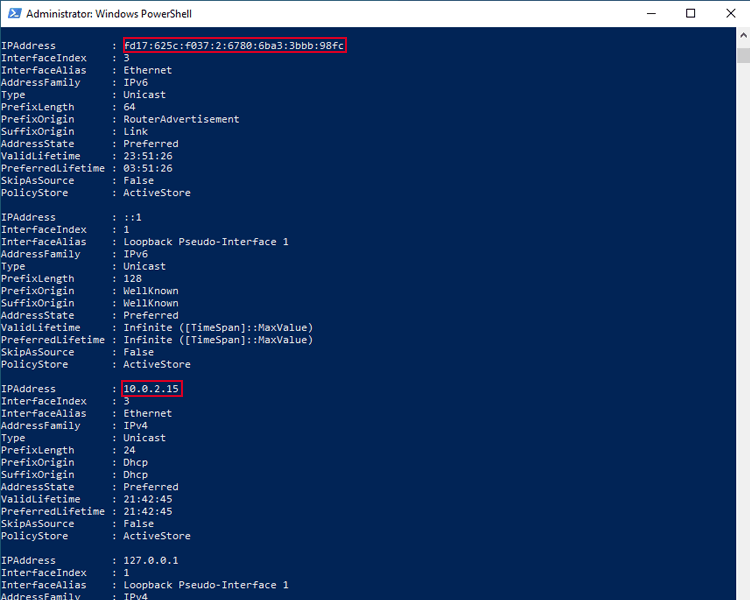
You can list all IP addresses assigned to your network adapters by running the following command. This command focuses on IP address information rather than the complete network adapter configuration.
Run the command below to list the IP addresses configured on your Windows VPS:
Get-NetIPAddressThe output includes information such as the IP address, address family (IPv4 or IPv6), interface alias, and other IP configuration details.
Get Network Configuration in Windows PowerShell
To get detailed information about your network adapter configuration, you can use the Get-NetIPConfiguration command in PowerShell.
This command displays important network information such as the IP address, default gateway, DNS servers, and the network adapter associated with the configuration.
Run the following command in PowerShell:
Get-NetIPConfiguration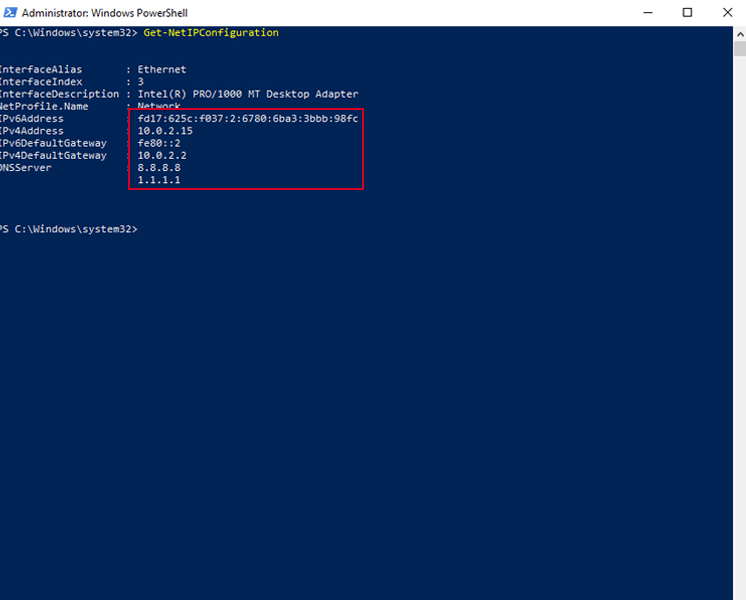
This command can be useful when you need more information than just the IP address and want to check how your Windows VPS is connecting to the internet.
You can also use the ipconfig command in the PowerShell environment.
Find VPS IP address in Windows
If you don’t want to use command-line tools like PowerShell and CMD, you can use Windows own graphical interface and verify your VPS address. You can either use newer Windows settings or the legacy control panel.
Check IP in Windows Settings
To find your network configuration through Windows Settings, open Settings by searching for it in the Start menu or pressing the Win + I keyboard shortcut. Then, navigate to Network & Internet and click Properties.
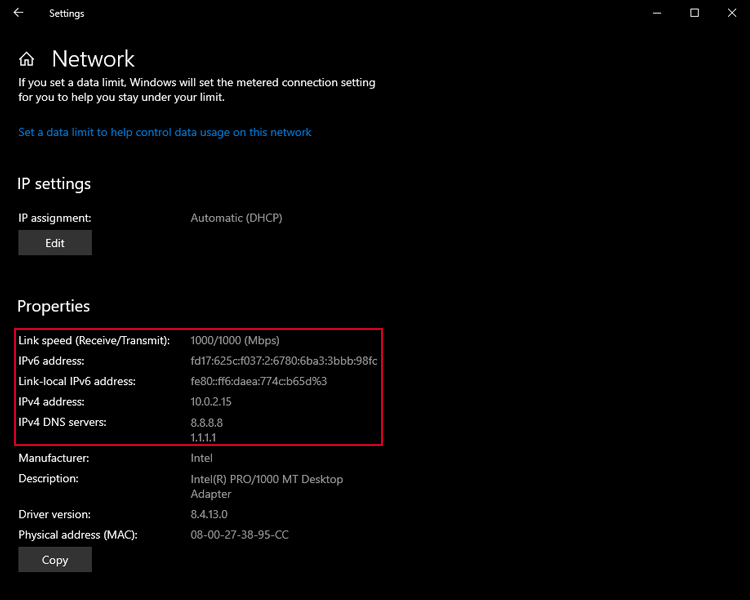
This page displays important network information, including your IP address, network profile, link speed, and other network configuration details.
Check Windows Network Configurations Using Control Panel
Using the Control Panel in Windows, which is a legacy setting, you can see much more detailed information about both your IP address and all other settings applied to your Network interface.
But this method should be used carefully because if you accidentally change any setting, you can get locked out of your server.
Press Win + R to open Run, type ncpa.cpl, and press Enter.
ncpa.cpl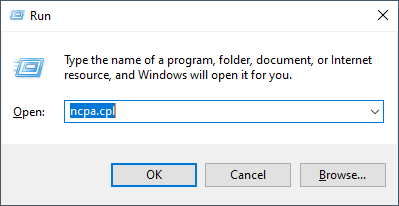
Here you will see all your network adapters. Double-click on the desired network adapter in the opening tab, and click on Details to check for your IP.
Note
Here, you can change your IP address and DNS server settings. However, if you are using a VPS, changing these settings incorrectly may cause network connectivity issues or even lock you out of the server.
Find Public IP Address of a Windows VPS
In most of the VPS’s, the public IP is the IP that is bound to your server, but if you want to verify and check it, you can use these commands in PowerShell and Command Prompt by running the commands below, or you can use online tools for checking them.
CMD command for checking public IP:
curl https://api.ipify.orgPowerShell command for checking public IP:
Invoke-RestMethod https://api.ipify.orgTo check your IP online, you can search for what is my IP address on Google and use one of the websites.
Conclusion
Checking the IP address of a VPS is not something users typically need to do, since the VPS provider usually assigns one or more IP addresses to the server and displays them in the provider’s control panel.
In most cases, the IP address provided by your hosting provider is the address you use to connect to and access your VPS.
However, you may want to verify the assigned IP address to make sure it is correctly configured and determine whether your VPS is using a dedicated public IP or a shared/NAT-based network configuration.
You can use an online IP-checking service to see the public IP address that your VPS uses to communicate with the Internet and compare it with the IP provided by your VPS provider.
You can also use either Windows PowerShell or CMD to verify your local and public IP addresses too.
FAQ
Why Does Public IP Differ From the IP Shown in Windows?
Sometimes, the IP address shown by Windows is only used to identify the VPS on an internal network, while the public IP address used to access the Internet is handled by the network gateway. As a result, the IP address shown in Windows can differ from the public IP address detected by an external service.
However, this is less common in VPS environments because most VPS providers assign a dedicated public IP address to each VPS. If the IP addresses are different, your VPS may be using NAT, a private network, or another network configuration provided by your hosting provider.
How to Connect a Windows VPS with an IP?
To connect to your Windows VPS, use the IP address provided by your VPS provider in the Remote Desktop Connection (RDP) application. Enter the username and password provided by your provider, then connect to the server.
Once connected, you can use your Windows VPS much like a local Windows computer, including installing applications, configuring services, and managing your files.
Does a VM Have an IP Address?
Yes, a virtual machine installed locally on VMware or other virtualization applications does have its own distinct local IP address and uses your own system or your router’s public IP address to access the internet.
If you want to install a Linux operating system on your Windows computer without removing Windows or setting up a dual-boot configuration, you can install Linux in a virtual machine instead. A virtual machine allows you to run Linux alongside Windows without modifying your main operating system.
You can follow this guide to learn how to install Ubuntu on VMware Workstation.